



Facebook has evolved from just a simple social interaction platform to one that is transforming businesses on a grand scale. The platform has attracted a whopping 9 million advertisers who take advantage of its large and diverse audience to grow their market (Facebook has .)
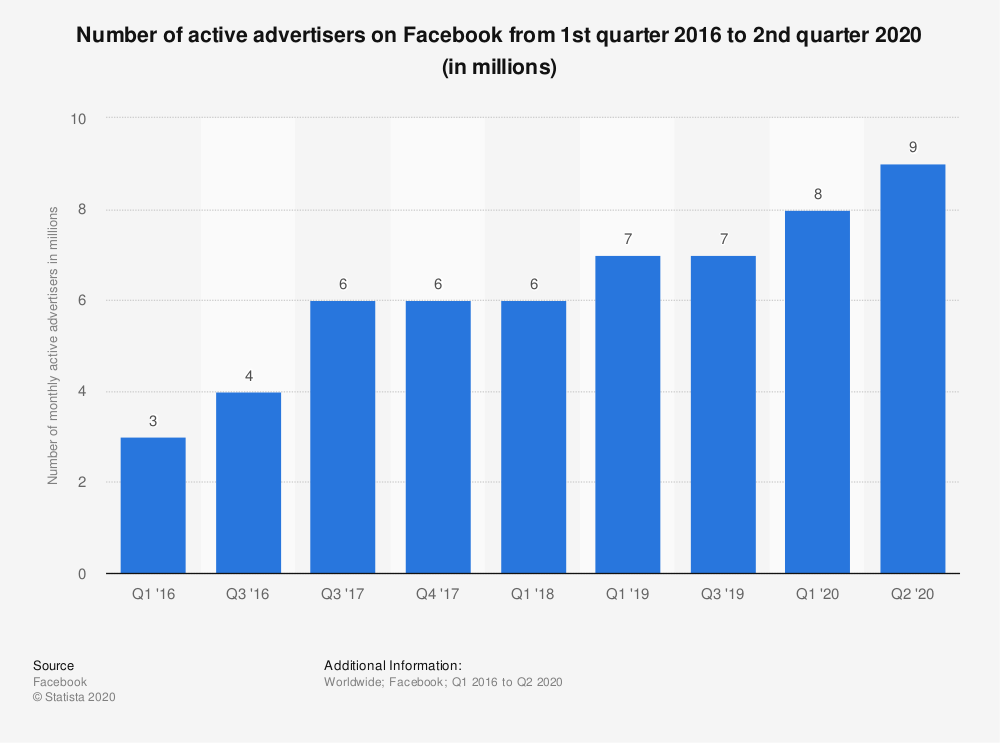
A significant number of these advertisers use Facebook Business Manager to manage their business and reach their specific goals, whether those are increasing sales, creating brand awareness, or unveiling new products/services.
Why have they chosen to use this tool and why should you do the same?
In this article, we’ll answer that question, as well as show you a simple way to set up your Facebook Business Manager account.
What is Facebook Business Manager?
Let’s start with of Facebook Business Manager:
“ A tool that lets large advertisers manage all of their ad accounts, Pages, apps, and permissions in one place.”
Basically, Facebook Business Manager is your business-only space on Facebook, where you can organize all your business tools and operate securely and stress-free.
Why You Need to Use Facebook Business Manager
Setting up a Facebook Business Manager account is a critical step you should take to enjoy the full benefits of having your business on Facebook. If you want your business to compete favorably in a saturated market, you need the tools and resources it offers to give you an edge over your competitors. It definitely trumps operating directly from your personal account!
Here are 10 reasons why you need Facebook Business Manager:
You Really Don't Have A Choice
Basically, if you're using email custom audiences as part of your ad strategy or would like to do that, then you have to set up Facebook Business Manager. You can only access custom audiences via a Business Manager account.
It’s Professional
Facebook Business Manager gives your business a more professional feel. Rather than using your casual personal account, which may contain information you don’t want mixed with your company presence and give the wrong impression to your target audience, this tool helps you maintain a more formal environment dedicated solely to your business.
It’s Less Distracting
Maintaining a professional account for business gives you more focus. You’re not constantly distracted by funny memes and videos on your personal newsfeed. Once you’re in Facebook Business Manager, it closes off such distractions and allows for total concentration on the work at hand.
It’s Private
Because Facebook Business Manager is exclusive to you, your partners, and your employees, privacy is assured.
It’s Secure
Facebook Business Manager allows you to easily monitor logins and access. Only the business owner can give access to a Business Manager account, either by inviting users as Partners or System Users, or by responding to access requests.
Also, Facebook Business Manager comes with a security center which includes features like two-factor authentication. 2FA requires a special login code to access the tool, ensuring that only people provided with the code get to access the account.
It’s More Organized
Facebook Business Manager is a stress-free, easier alternative to having your numerous accounts scattered all around Facebook.
It gives you enough space to organize, access, and navigate all your Pages, ad accounts, and other assets in one place and work on them at just a tap of a menu item.
It Provides an Easy Way to Delegate and Monitor Projects
With Facebook Business Manager, you can assign projects and permissions to users easily. Also, you can monitor all assignments without logging into different accounts. All you need is just a click of a button and you’re in.
It Promotes a More Effective Marketing and Advertising Process
Business Manager houses Facebook Ad Manager, a tool that makes marketing and advertising a breeze.
Ad Manager provides everything you need to run a successful ad campaign right from your Business Manager.
It Increases ROI
Any tool that saves you stress, time, and money, and provides you with tools for effective business management and successful ad campaigns will ultimately increase your return on investment. Facebook Business Manager is no exception.
It's Free
The best part is you don't have to spend a dime on Facebook Business Manager. It's totally free (for now, at least, so you should definitely take advantage of that!)! So, if you were thinking you may not have the budget to access this tool, that is definitely not an issue.
So How Do You Set Up Facebook Business Manager?
Note: Before you begin this process, make sure that you have a personal account on Facebook to link your Business Manager to.
The Basics: Creating Your Account
Creating your Business Manager account takes just a few simple steps. Here we go!
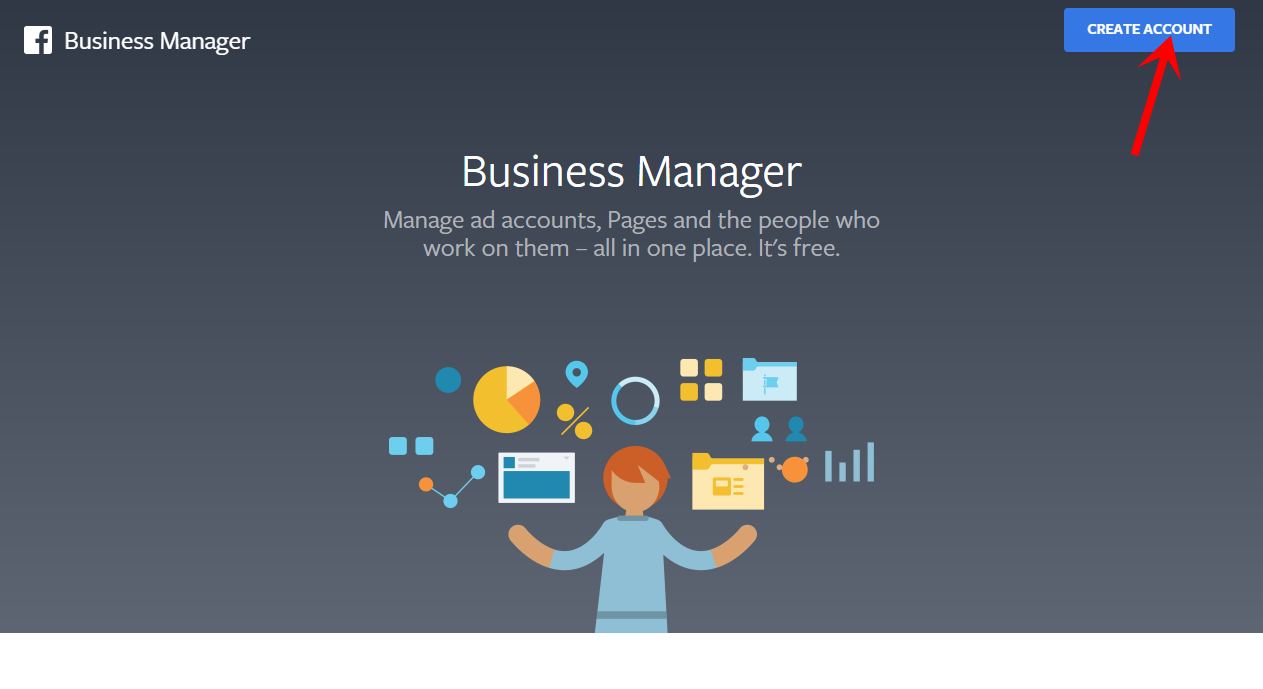
Go to
The link takes you to the Facebook Business Manager website. In the top right corner, click Create Account.
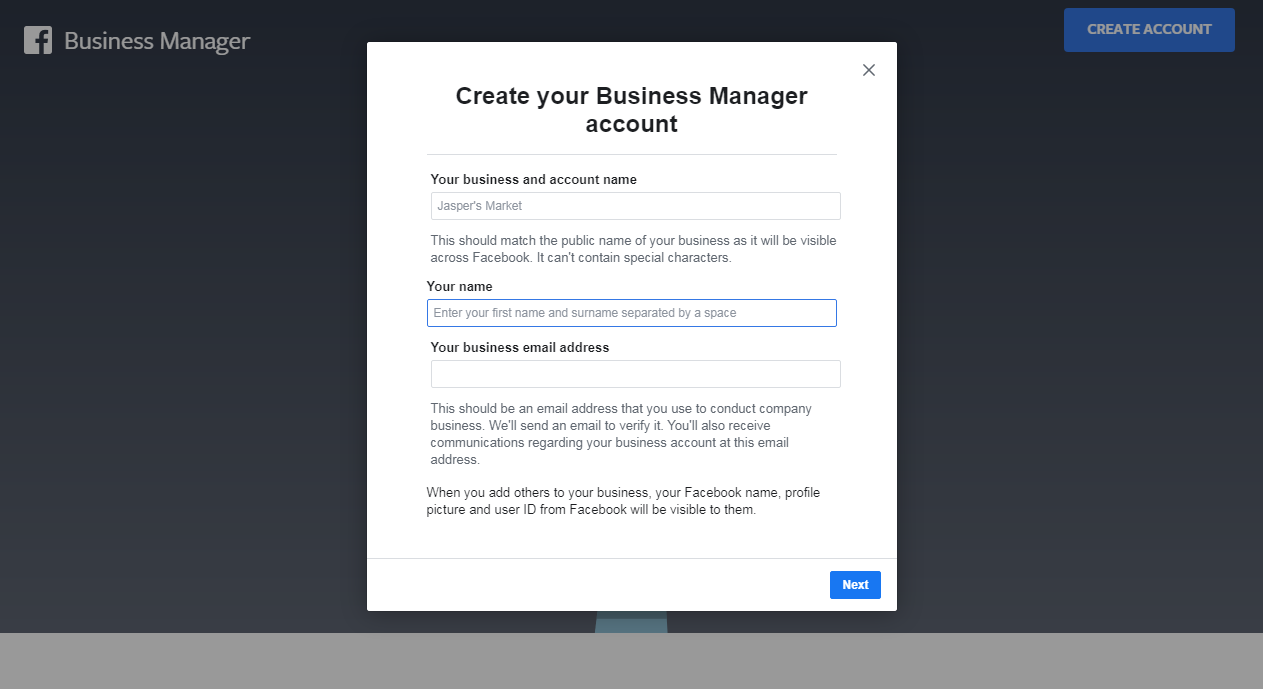
Fill in your business and personal details as needed and click Next.
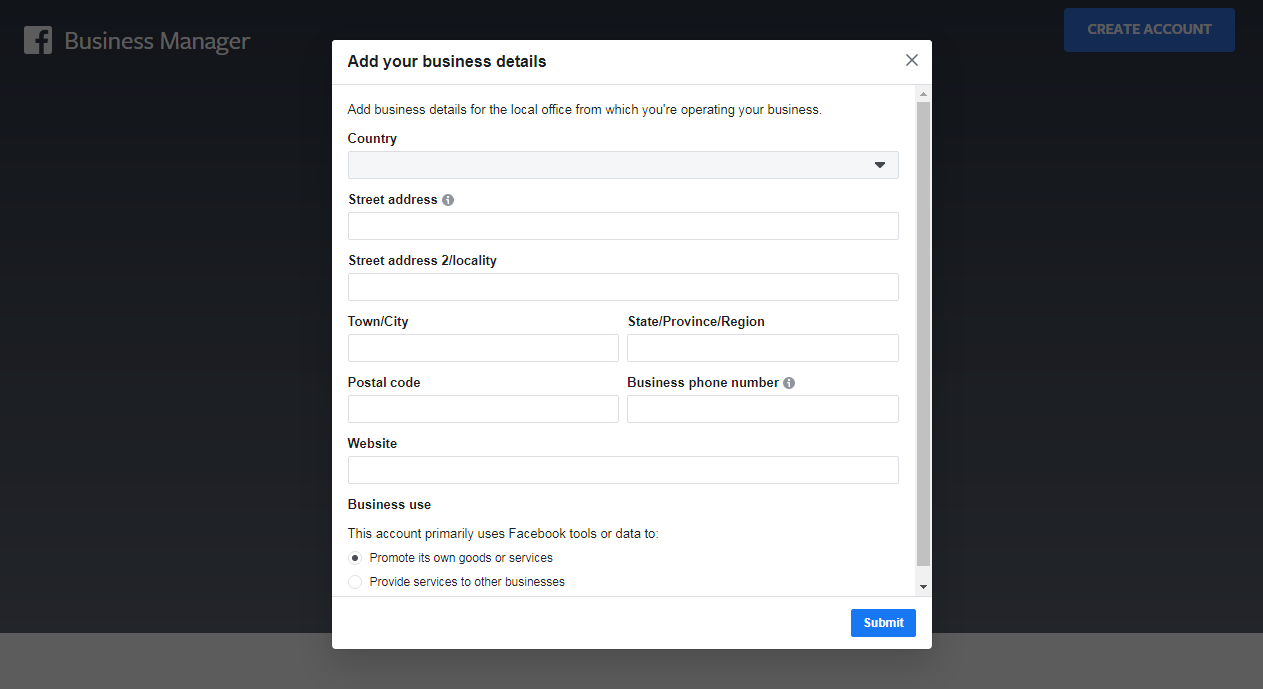
Provide details of your business' physical location and contact information and click Submit.
Verify your business email: To access your account, you must verify the email address you provided. You will receive a verification email at that address from Facebook. If you don’t, simply go to Business settings and request one.
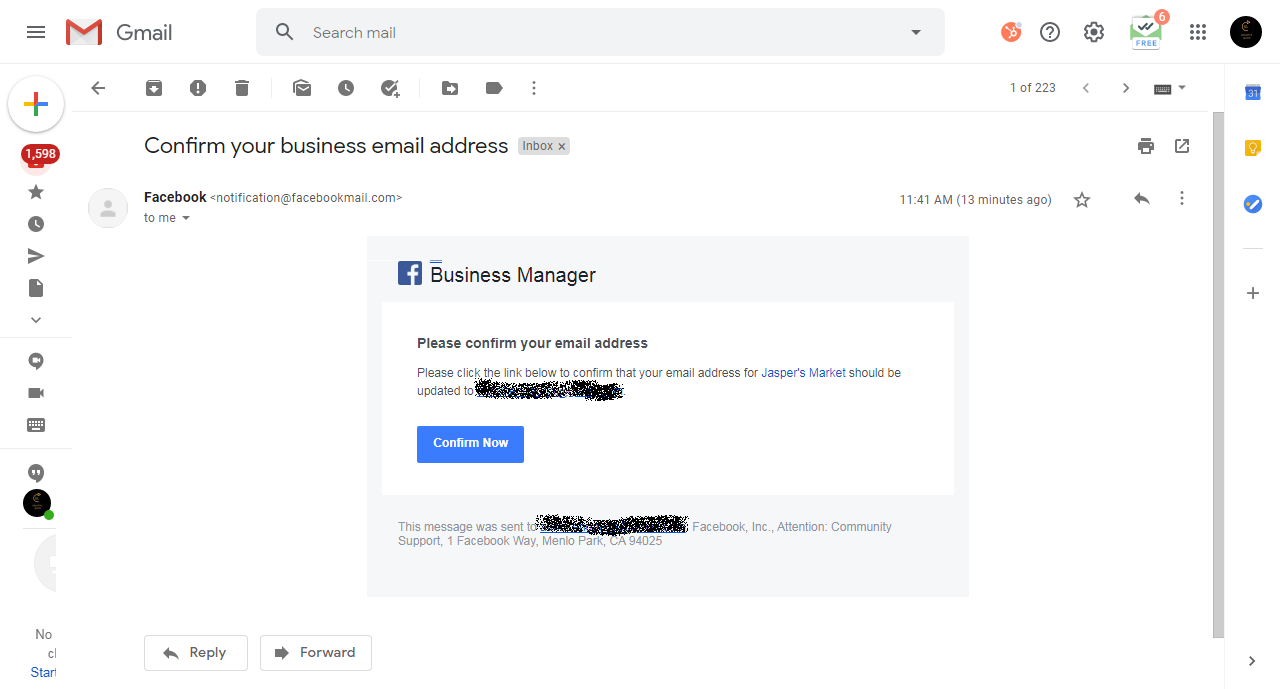
And that’s it.
The next step you’ll need to take is to link your Pages, ad accounts, and People (System Users and Partners), and add a payment method.
Adding Pages
To add Pages,
Go to Business settings
Go to Accounts and click Pages
Tap the Add button
You’ll be asked to choose from the following options:
Add a Page
Request access to a Page
Create a new Page
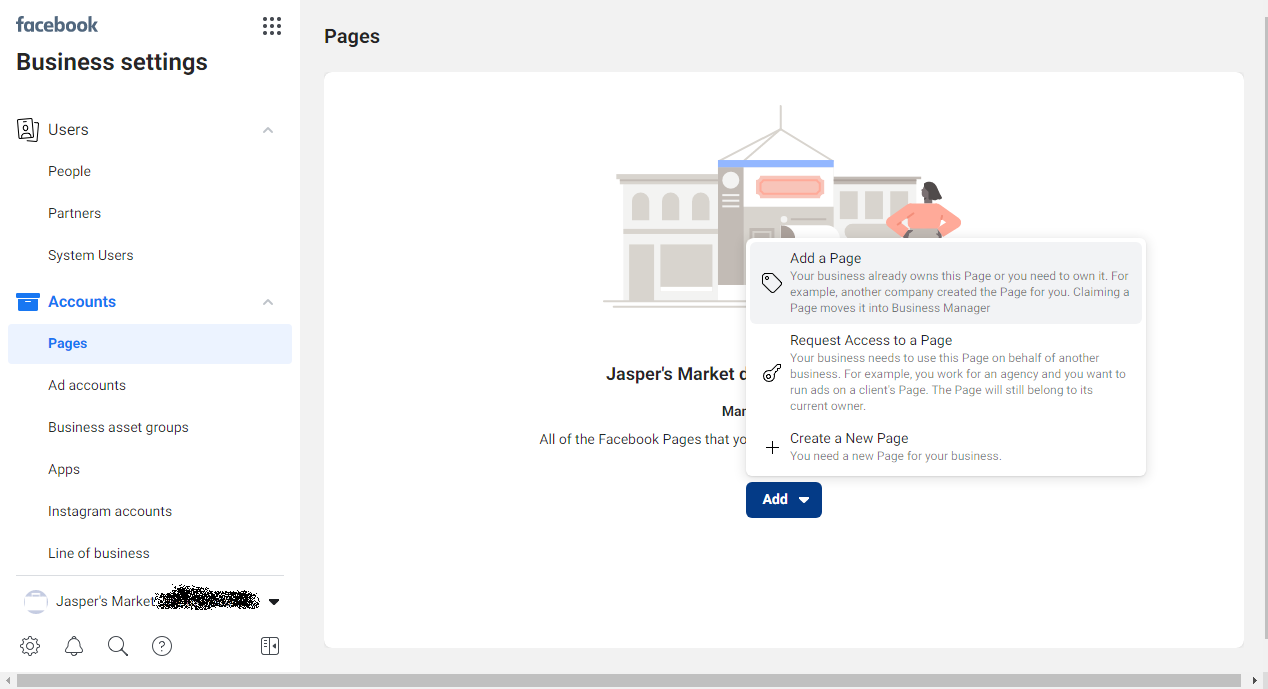
You can add Pages for which you have been an admin for over 7 days or request access to a Page where you’re not an admin.
Enter the Page's name or URL
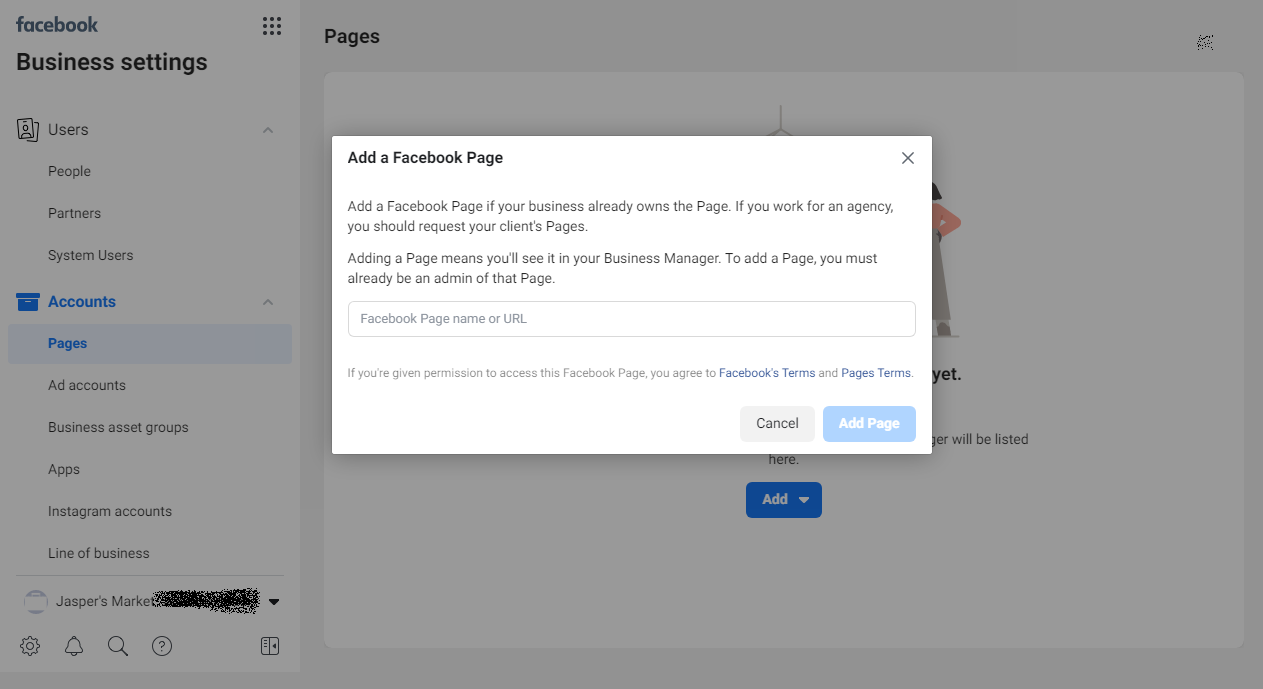
To request Page access,
Go to Business settings
Select ‘Request Access to a Page’
Enter the URL of the Page you need access to
Repeat this process to add as many Pages as you want.
Adding Ad Accounts
To add ad accounts,
Go to Business settings
Go to Accounts and click Ad Accounts
Tap the Add button
Choose from the following options:
Add ad account
Request access to an ad account (For this option, you'll need to enter the ad account ID to complete your request)
Create a new ad account
Note: You can have up to 25 ad accounts on your Business Manager.
Adding People
Add relevant users to your account in the following steps:
Go to Business settings
Click People/Users
As an employer or partner, you're able to monitor everything concerning your business directly from your Business Manager.
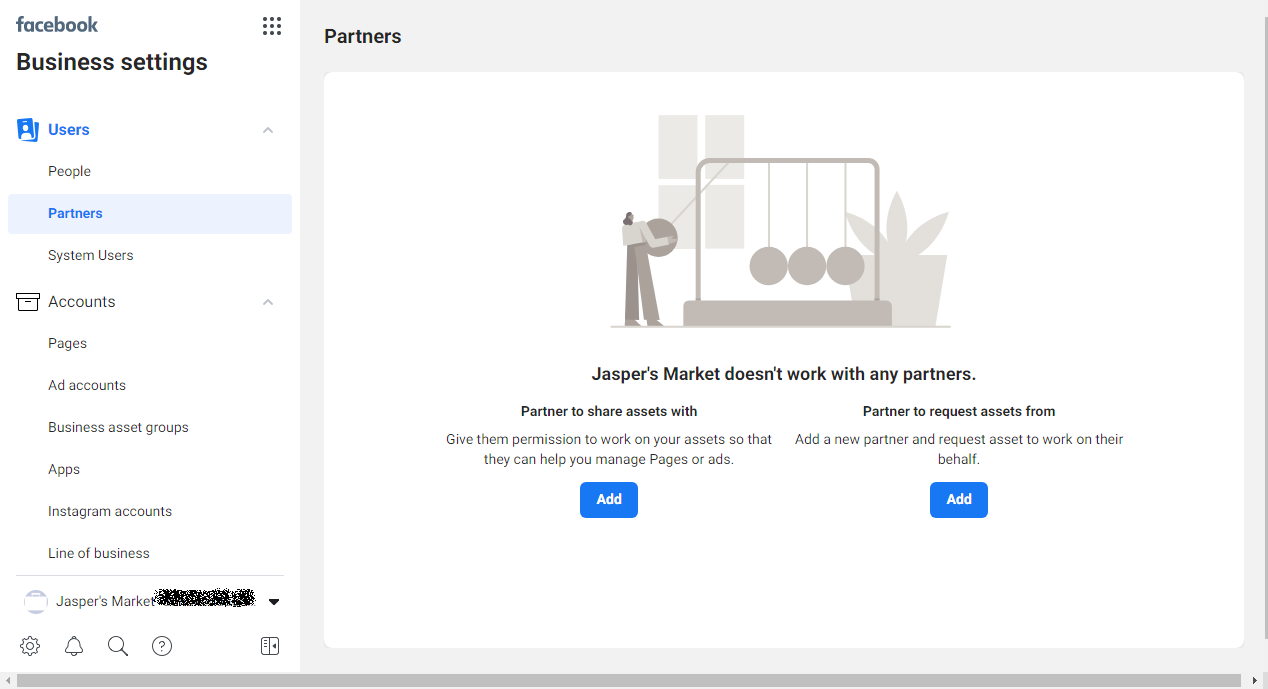
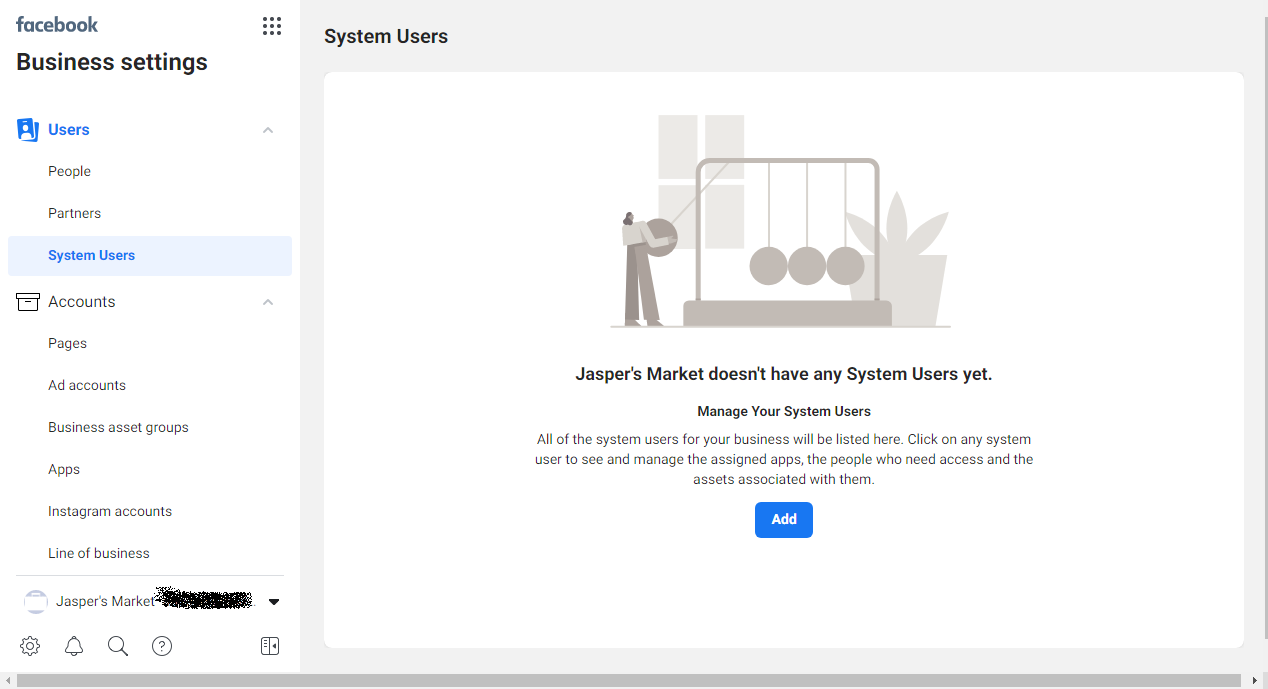
Fill in the user’s work email address
Select a role to assign
Select either Employee access or Admin access. You can also select Show Advanced Options to choose Finance analyst or Finance editor
Click Next.
Select the type of asset in the first column
Select the individual asset(s) you want the user working on in the second column
In the third column, either select tasks you’ll like to assign the user or select Admin access to allow them to manage the asset.
Click Invite.
Adding a Payment Method
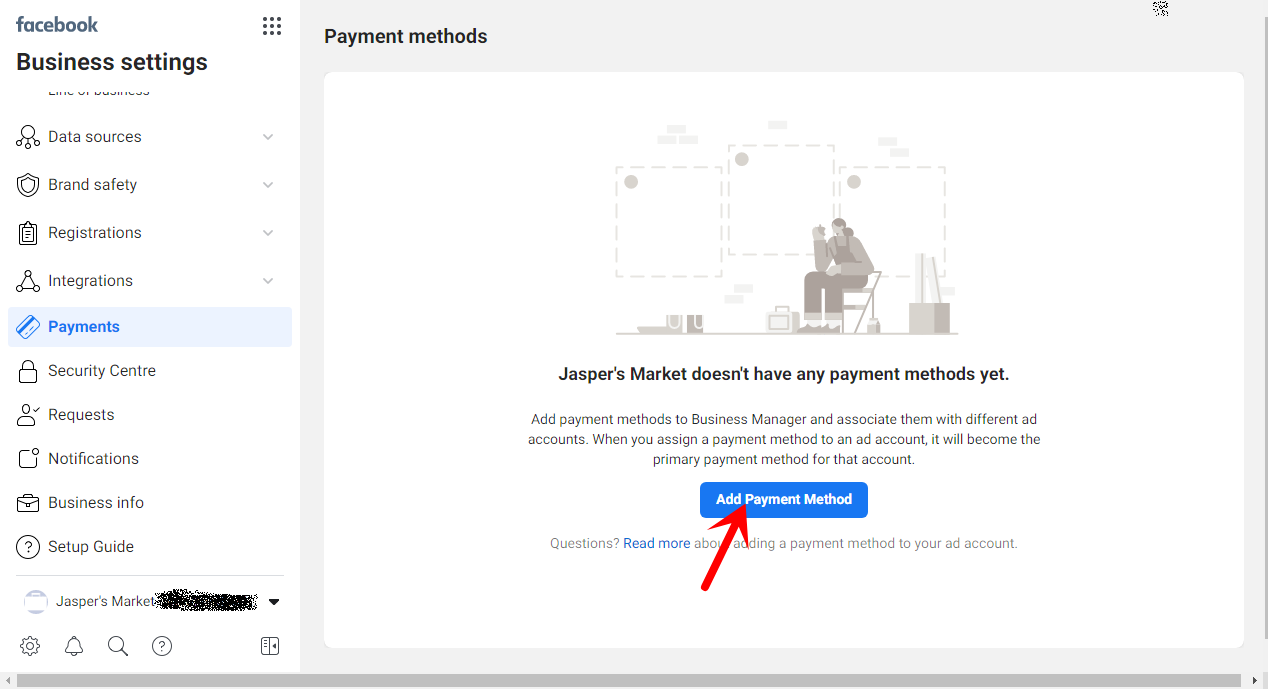
You can add a payment method to your Business Manager to manage all your billings and payments for ads.
To add a payment method:
Go to Business settings
Click Payments
Click Add Payment Method
Fill in your payment details and click Continue
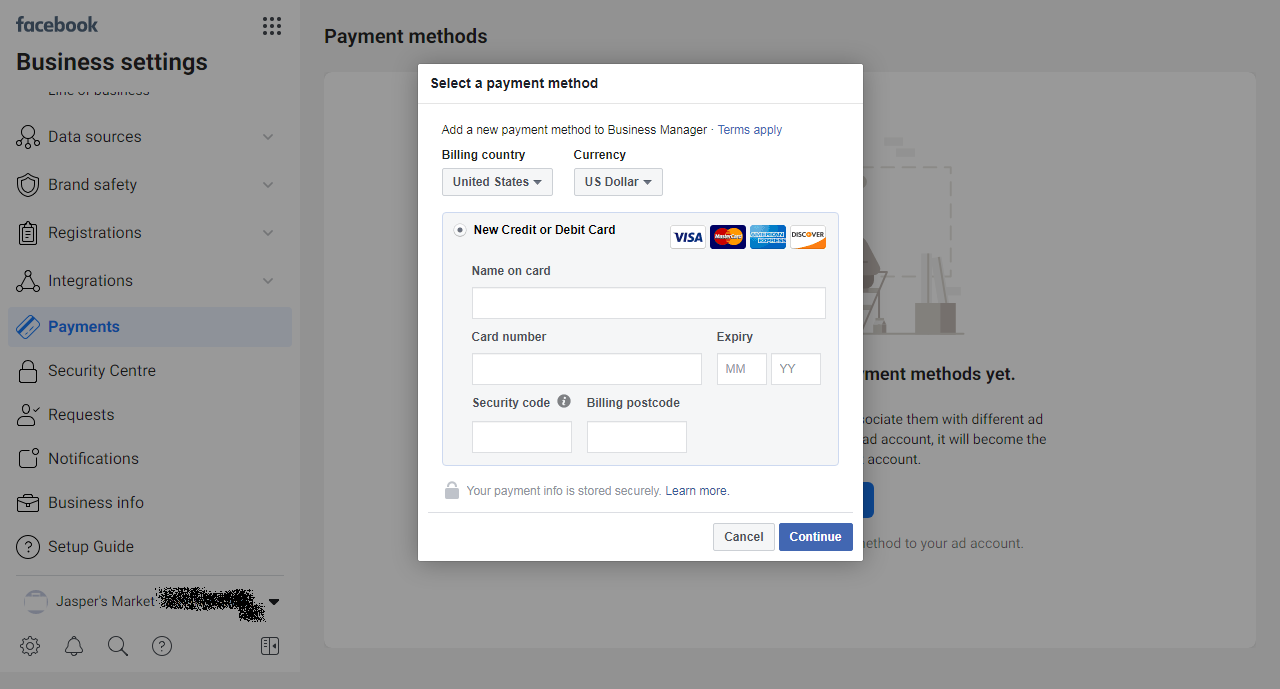
Follow the on-screen instructions to add your payment method.
There You Go!
Setting up Facebook Business Manager can be a daunting task, but it’s surely a rewarding one. Just follow our guide to simplify the process.
Here’s a quick recap of why you need to use Facebook Business Manager and how to set it up:
Reasons:
Steps:
Need help converting your ads to impressive increase in sales and a positive ROI? We can help you get there!
boasts of a team of experienced ad professionals who have tripled client sales through high-converting advertising campaigns.
to us today and become our next success story.